
Tabulation Specifications
Metadata → Specifications → Tabulation (SDTM)
This process creates the basis for your CDISC SDTM tabulation datasets directly from the CDISC standards, no fixed template, no metadaa repository, no human error..
The Metadata tool can create SDTM specifications directly from the CDISC documentation in seconds, no static metadata repository (MDR) required.
Any version of the CDISC Implementation Guide.
A blank or custom Microsoft Excel file.
Open Microsoft Excel.
Navigate to the Metadata ribbon.
Locate the CDISC section of the ribbon.

Click the Create Specifications drop down then the Create Specifications button.
A prompt will appear.
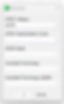
Select SDTM from the Category then select the applicable CDISC versions, including the implementation guide version, model version and controlled terminology version.
TIP select the latest versions.
Click OK to continue, and a domain selection window will appear.
The user can now select the domain or domains they wish to import. Clicking OK will continue the process.
Note, subsequent runs will show previously selected domains in the lower table.
After some time a new prompt will appear, showing the variable level information applicable to the domain or domains selected.

The user can choose to manually copy the tables, in full or in part.
Alternatively the user can Export the contents directly into an Excel workbook, like so.
To export the domain and variable level information to an existing Excel template, click the Export button under the variable level table.
IMPORTANT: The process first exports the domain level (DLM) information (top box) then the variable level (VLM) information (bottom box).
First the DLM a prompt will appear.

If the process was run using a blank workbook, uncheck the Use Template option.
However, if the process was run using a template workbook, the Use Template option can be selected, and a Template Worksheet can be selected from the drop-down list, e.g., the worksheet named DLM.
Click to OK to begin the export process.
Next the VLM export prompt will appear.

If the process was run using a blank workbook, uncheck the Use Template option.
However, if the process was run using a template workbook, the Use Template option can be selected, and a Template Worksheet can be selected from the drop-down list, e.g., the worksheet named VLM.XX.
IMPORTANT: By default, when multiple domains were selected, each domain will be exported to their own worksheet, if the user wishes to export all domains to a single worksheet, uncheck the Split Domains option.
The Worksheet Prefix text will be added to each worksheet name added to the workbook.
Click to OK to begin the export process.
IMPORTANT: If the user clicks Cancel at this stage, the DLM information will have been exported but the VLM information will not be exported.
After some time the above prompt will appear.
This indicates the process has finished, click Close on the window to close the specification creation window.
Review the exported domain level information first, e.g., check the DLM worksheet.

Then review the exported variable level worksheets.

The chosen domains have been successfully exported onto their own worksheets.
The process can be re-run again if required with no impact to previously exported domains.