
Generating Templates
What Does It Do?
The Metadata tool can create ready to use study programs based on defined templates in seconds, to rapidly get programming started while maintaining consistency and program layout.
What Do You Need?
-
A list of programs to be created.
-
Template programs.
Guide
-
Open Microsoft Excel.
-
Navigate to the Metadata ribbon.
-
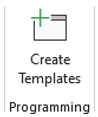
Locate the Programming section of the ribbon.
-
Click the Create Templates button in the Programming section.
-
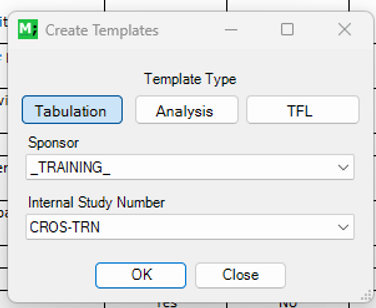
A file dialogue window will appear.
-
Select the applicable Sponsor and Study Number.
-
Then click OK to continue.
-
A range selection window will appear.

-
Simply select the first cell of the column which contains the labels for the name of either the dataset /domain name for dataset programs or the table, figure or listing output name for the TFL programs.
-
For example, once the user selects the cell B2, the cell address would appear in the selection window. Note, the inclusion of "$" does not impact the selection.
-
IMPORTANT: The cell selection should only use one column.

-
Once a cell is selected, click OK to continue.
-
A further prompt will appear listing all template programs which are to be created but also all template programs which already exist.

-
Simply check the template programs you wish to create and uncheck those you wish to ignore.
-
After some time a prompt will appear indicating which programs have been created.

-
IMPORTANT: The process will not overwrite any existing programs.